
You can download video without installing an app by using a browser-based downloader, but permission comes first. Save only content you own, have permission to download, or are otherwise authorized to use. A simple process does not replace the rights holder’s permission.
It’s reasonable to want a quick way to save a video for later. Before submitting its URL, check that you have permission, the license allows downloading or reuse, the content is in the public domain, or the platform offers authorized offline viewing. Then choose a suitable format and quality, paste the video URL into a downloader, and save the file on your phone or computer. This guide explains the steps and how to find the downloaded file.
Key Takeaways
- Choose a video format that fits how you plan to use the file, then balance picture quality with available storage.
- Copy the video’s shareable URL and paste it into the downloader’s input field to start the process.
- Use a current mobile or desktop browser, then look in your device’s downloads or file manager for the saved video.
- Watch for misleading ads and unexpected pop-ups when using a browser-based downloader.
IS IT LEGAL TO DOWNLOAD VIDEOS?
Use a website’s Download button or your browser’s “Save video as” option when available. Chrome, Safari, and Firefox developer tools don’t grant permission or override restrictions. Save media only when you’re authorized.
- Confirm your rights first. Download videos you own, have permission to save, or are otherwise authorized to download. For example, a creator can save their own uploaded video. A public video page alone doesn’t establish permission to keep a copy.
- Check the license or platform rules. Look for a license that permits downloading or reuse, or confirm the video is in the public domain. Some platforms offer an authorized offline-viewing option. Use that option when available instead of extracting a separate file.
- Understand the legal distinction. Copyright rules vary by country. Distributing copyrighted videos is illegal in the United States and many other countries. Downloading and sharing are different actions, but permission and applicable platform terms still matter. Don’t assume that a browser tool changes those rules.
- Choose a browser-based method. Open an online downloader in Chrome, Safari, or Firefox on a phone, tablet, or computer. This avoids installing separate software. Check for HTTPS in the address bar, and avoid suspicious ads, fake download buttons, and unexpected pop-ups.
- Use built-in controls when the site provides them. Select the platform’s download control, or right-click a playable video and choose “Save video as” if your browser offers that option. Developer tools may show page resources, but access to a file doesn’t mean you have the right to save it. Don’t bypass access controls or platform restrictions.
Choosing video quality and format
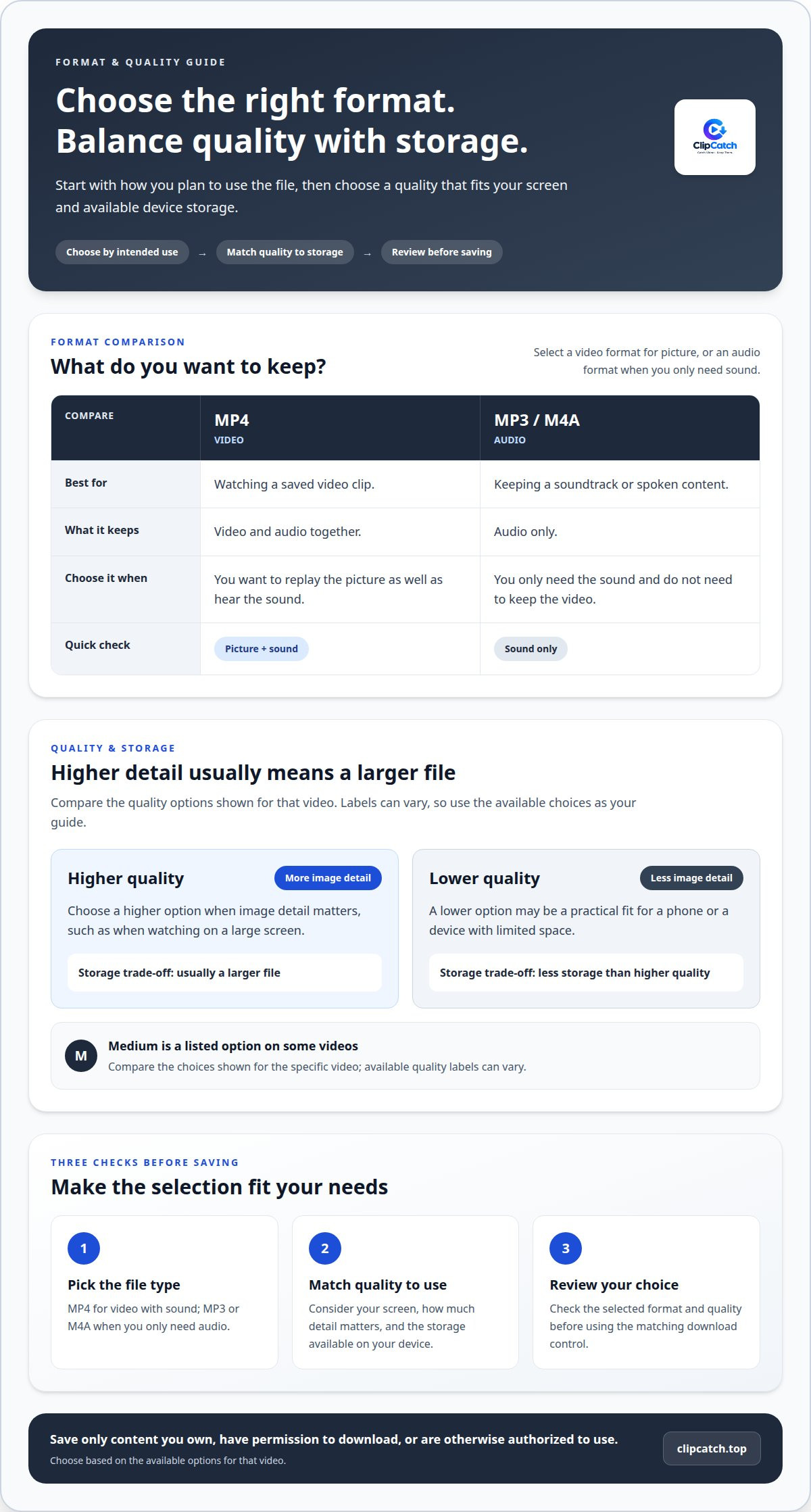
- Decide how you’ll use the file. Choose a video format for viewing, or an audio format when you only need sound. MP4 keeps video and audio together. MP3 and M4A are audio formats. For example, select MP4 to watch a saved clip, or choose MP3 for an audio-only file.
- Match quality to your screen and storage. Higher-quality video usually requires more storage than lower-quality video. If you plan to watch on a large screen, choose a higher quality option when available. For a phone or a device with limited space, a lower quality may be a practical fit.
- Check the available quality labels. A downloader may show options such as high, medium, or low quality. Select the highest option only when image detail matters and you have room for the larger file. Otherwise, choose a smaller option. The labels can vary by video, so compare the choices shown for that file.
- Keep the intended playback device in mind. MP4 is a video option, while MP3 and M4A are audio options. If you want to replay the picture, don’t select an audio-only format. If you’re saving a soundtrack or spoken content, an audio format avoids keeping video you don’t need.
- Review the selection before downloading. Confirm the format and quality in the downloader’s options, then select the matching download control. ClipCatch.top offers MP4, MP3, and M4A options through its video download tool. Choose the option that matches your intended use and available device storage.
Copying and submitting a video URL
- Open the video’s own page. Navigate to the specific video, not a search results page, profile, or channel. For example, open the YouTube or Bandcamp page containing the clip you intend to save. Copying the direct page link gives the downloader a clear starting point. Confirm you’ve selected the right video before moving on.
- Copy the link from your browser. On a computer, select the address bar and copy its full contents. On a phone, use the video page’s share control and choose its copy-link option. Chrome, Safari, and Firefox provide browser access on mobile devices. This browser-based method lets you download a video without installing an app.
- Use the platform’s share link when available. A share option can provide the video’s page address without copying surrounding page text. Platforms such as Bilibili and Dailymotion may display their own sharing controls. Copy the link itself, not the video title or a caption. If the platform offers several sharing choices, select the option that copies a link.
- Paste the URL into the downloader. Open the downloader’s input field, tap or click inside it, and paste the copied address. Check that the field contains a web address rather than a video title or unrelated text. Then select the page’s submit or download control to let the tool process that link. It’s a straightforward way to download a video without installing an app.
- Review the result before continuing. Confirm that the video shown matches the page you selected. If the downloader reports an invalid link, return to the video page and copy its address again. Avoid adding extra characters or spaces when pasting. Submit a corrected link only for content you’re authorized to download.
Downloading videos on phones and computers
Yes. On an iPhone or Android phone, open a browser such as Safari or Chrome and use an online downloader. The same approach works on a computer with Chrome, Safari, or Firefox, without installing an app.
- Open an updated browser. On iPhone, launch Safari; on Android, open Chrome or another current browser. On a computer, use Chrome, Safari, or Firefox. Keeping the browser updated helps you use current browser features and avoid known issues.
- Submit the video link. Open the online downloader in that browser and paste the video URL into its input field. Select the download control, then choose the format and quality available for that video. Use only content you’re authorized to save.
- Keep the browser open if needed. Some video downloads can continue in the background, allowing you to use another browser tab while the file saves. Watch for the browser’s download indicator or notification. If the transfer stops, return to the downloader and follow the displayed options.
- Find the saved file on your phone. Check the Downloads folder first. If the video isn’t there, open your device’s file manager and look in its downloads area. On a computer, check the browser’s download list or the folder selected for downloaded files.
- Choose a storage location carefully. Some download tools support saving to an SD card or a password-protected folder. Use those options only when they appear in the tool you’re using. A protected folder can help limit casual access, while an SD card can keep a video separate from internal storage.
- Use care with unfamiliar pages. Avoid unexpected pop-ups and misleading download buttons. Check the file name and format before opening it. If a page prompts you to install an app or browser extension, don’t proceed when your goal is an app-free download.
Start a browser-based video download from your phone or computer.
ClipCatch.top: Free Video Downloader
ClipCatch.top offers a Free Video Downloader that lets you save videos in your browser. Use it when you have permission to download a video and want to avoid installing an app or plugin. Submit the video URL, then choose an available format.
Select MP4 to keep video and audio together, or choose MP3 or M4A for audio. Consider your playback needs before starting the download. A video file is the practical choice for watching the clip, while an audio format suits listening without the picture. Keep the file on your phone or computer after downloading.
Use the downloader for content you own, have permission to save, or are otherwise authorized to download. Contact ClipCatch.top for help using the Free Video Downloader.
Make your next download easier to manage
Before downloading a video, decide how you’ll use the file afterward. A short, descriptive file name makes it easier to recognize later, especially when several clips have similar titles. Keep downloads tied to a clear purpose, such as a presentation, personal project, or offline viewing. This habit helps prevent saved videos from becoming difficult to identify or use.
To download a video without installing an app, keep the process simple: choose the video, copy its link, and decide where to save the file. Use a browser-based option when it suits your task, and download only content you’re authorized to save.
For help with your next download, contact ClipCatch.top. Take the next step when you’re ready, and keep your video workflow simple.
Frequently Asked Questions
How to download a video in a web browser without installing an app?
You can download a video without installing an app using a browser-based tool, if the source and tool support it. Copy the video page’s link, open the downloader in your browser, paste the link, select an available video option, then save the file. Check your downloads folder afterward. Save only content you own, have permission to use, or can legally download.
Which websites let you download videos online without software?
ClipCatch.top’s Free Video Downloader works online with supported platforms, including YouTube, Dailymotion, Bilibili, Bandcamp, ESPN, and 9GAG. It offers MP4 video and MP3 or M4A audio. Platform support doesn’t mean every clip is downloadable, so check whether the specific link is accepted. Make sure you have the right to save and use the video before downloading it.
Are online video downloader websites safe from malware and scams?
Online downloader websites aren’t automatically safe, so use them with care. Don’t install a file presented as a required codec, extension, or download manager. Reject unexpected notification or account-access requests, and check the domain spelling before pasting a link. After downloading, scan the file with your device’s security software. Open it only if its file type and name match what you expected.
Is downloading videos from streaming sites legal in the United States?
In the United States, legality depends on the video’s rights, your authorization, and how you use the copy. Downloading copyrighted material without permission can infringe copyright; keeping it for personal viewing doesn’t automatically make it lawful. A creator’s permission, a license, or public-domain status may allow copying. Fair use is fact-specific, so don’t treat it as blanket permission to save any stream.
Do video platforms allow downloading for offline viewing without an app?
Whether you can download through a browser depends on the platform’s features and rules. Check its playback menu for an official download control and use it if available. Don’t assume an offline option creates a regular video file: some platforms manage offline playback in their own player, so the copy might not appear in your device’s downloads folder.
What are the file size, quality, and format limits of browser-based video downloads?
Browser-based downloads have no universal size or quality ceiling. The source’s available resolution sets the maximum quality, while the downloader, browser, device storage, and platform affect which options appear and whether a large file completes. Common video formats include MP4 and WebM; audio-only exports can use MP3. Check available storage before starting a large download.

